Loading manual…
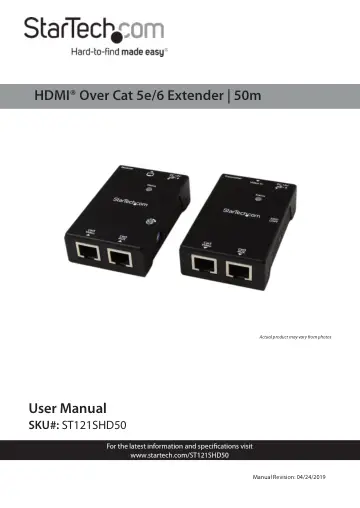
StarTech.com ST121SHD50 user manual
- Type
- User manual
- Language
- English
- Pages
- 17
- Models
- ST121SHD50
Open PDFOpens the file on objects.icecat.biz.
Contents
- Compliance Statementsp. 2
FCC Compliance Statement This equipment has been tested and found to comply with the limits for a Class A digital device, pursuant to Part 15 of the FCC rules.…
- Safety Statementsp. 3
Safety Measures • Wiring terminations should not be made with the product and/or electric lines under power. • Cables (including power and charging cables)…
- Product Diagramp. 5
- Top Viewp. 5
- Front Viewp. 6
- Rear Viewp. 7
Power Jack Port 2 HDMI In Port 3 Power Jack Port 4 HDMI Out 1 2 3 4
- Introductionp. 8
The ST121SHD50 HDMI® over CAT5e/6 Video Extender kit lets you extend HDMI® video and audio up to 165 feet (50 Meters) (1080i) over 2 CAT5e Ethernet cables, or…
- Requirementsp. 8
are subject to change. For the latest requirements, please visit www.startech.com/ST121SHD50. Video Device • HDMI® enabled video source device (i.e. computer…
- Installationp. 9
Preparing Your Site 1. Determine where the local video source (i.e. computer, Bluray Player) will be located and set up the device. 2. Determine where the…
- Preparing Your Sitep. 9
1. Determine where the local video source (i.e. computer, Bluray Player) will be located and set up the device. 2. Determine where the remote display will be…
- Hardware Installationp. 9
1. Position the Transmitter Unit near the video source (i.e. Computer, Blu-ray Player).
- Operationp. 11
Video Adjustment (Receiver Unit Only) This function allows adjustments in sharpness of the video image for better clarity. If necessary, adjust the EQ Selector…
- Video Adjustment (Receiver Unit Only)p. 11
This function allows adjustments in sharpness of the video image for better clarity. If necessary, adjust the EQ Selector at the Receiver Unit to compensate…
- EDID Configurationp. 12
If you are experiencing poor resolution or inconsistent audio or video output, you can specify EDID settings or copy EDID settings using the EDID button. The…
- Auto EDID Configurationp. 13
The Transmitter can automatically copy EDID settings from the connected display. In order for this function to work both Link Out A and Link Out B Ports on the…
- Manual EDID Configuration (EDID Copy/EDID Ghost)p. 13
1. Connect a Cat5e/Cat6 Cable (sold separately) to the Link Out A port on the Transmitter. 2. Connect the other end of the Cat5e/Cat6 Cable to the Link In A…
- EDID Factory Default Settingp. 14
To avoid confusion in which EDID information has been copied or for more purposes, this function enables to reset the state to factory default. 1. Follow the…
- DDC Pass Modep. 15
Press the button for more than 15 sec. and release right after the LED flashes green. The LED lights blue indicating setting successfully. To exit this mode…
- LED Indicatorsp. 15
Status Transmitter DVI EDID content configured *Emit blue with green flashing twice HDMI EDID content configured *Emit blue with green flashing three times…