Loading manual…
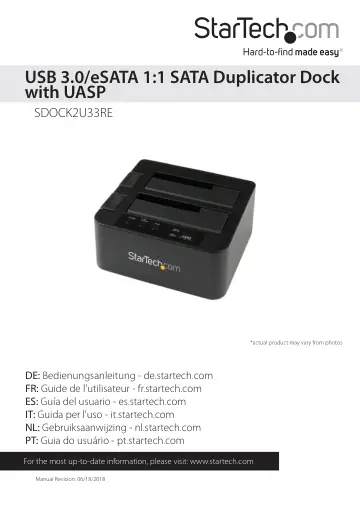
StarTech.com SDOCK2U33RE user manual
- Type
- User manual
- Language
- English
- Pages
- 13
- Category
- Storage & drives
- Models
- SDOCK2U33RE
Open PDFOpens the file on objects.icecat.biz.
Contents
- Product Diagramp. 4
Front View 1. Power button and LED 2. PC/Copy Mode button and LED 3. Start Duplication button 4. HDD1/HDD2 Activity LED indicators 5. Duplication LED Progress…
- Front Viewp. 4
1. Power button and LED 2. PC/Copy Mode button and LED 3. Start Duplication button 4. HDD1/HDD2 Activity LED indicators 5. Duplication LED Progress bar 6. Hard…
- Rear Viewp. 5
1. eSATA port 2. USB 3.0 port 3. Power adapter port
- Introductionp. 6
- System Requirementsp. 6
Computer system with available eSATA port or USB 3.0/2.0 port • Up to two 2.5” or 3.5” SATA Hard Drives (HDD) or Solid State Drives (SSD) • Microsoft® Windows®…
- Installationp. 6
WARNING! Hard drives and docking stations require careful handling. If you are not careful with your hard disk, lost data may result. Always handle your hard…
- Docking Station Installationp. 6
1. Connect the Dock to an available power outlet, using the provided power adapter. 2. Connect the Dock to your computer system, using the provided USB/eSATA…
- Drive Installationp. 7
1. Carefully align and insert the 2.5” or 3.5” SATA drive(s) you wish to dock in the desired hard drive slot on the docking station, such that the SATA power…
- Drive Removalp. 7
WARNING! Ensure your hard drive(s) has been disconnected from your computer operating system prior to attempting drive removal. Failure to properly disconnect…
- Operationp. 8
Duplication Operation 1. Install your source and destination drives as per the Drive Installation steps. Note: The drive containing the DATA you intend to be…
- Duplication Operationp. 8
1. Install your source and destination drives as per the Drive Installation steps. Note: The drive containing the DATA you intend to be copied, should be…
- Docking Station Operationp. 9
1. Install your drives as per Drive Installation steps. 2. Turn your docking station on by pressing the power button and holding it for 3 seconds. 3. Ensure…
- Drive Initializationp. 9
below for further instructions.) Drive Initialization Prior to using your installed drive, it will need to be initialized and formatted to the operating system…
- LED Indicatorsp. 10
State Power LED PC/DUP LED Source (HDD2) LED Target (HDD1) LED Blue LED RED LED Blue LED RED LED PC Mode; Powered and Ready Solid Blue Solid Blue On Off On Off…
- Disconnecting the Hard Drivep. 10
Windows 1. Select the “Safely remove Hardware and Eject Media” icon, located in the task bar. 2. Select the storage device from the list that appears. 3. Wait…
- Specificationsp. 11
Host Interface USB 3.0 eSATA External Connectors 1 x USB 3.0 B female 1 x eSATA female Internal Connectors 2 x SATA DATA (7 pin) + Power (15 pin) reciprocal…
- Technical Supportp. 12
StarTech.com’s lifetime technical support is an integral part of our commitment to provide industry-leading solutions. If you ever need help with your product…
- Warranty Informationp. 12
This product is backed by a two year warranty. In addition, StarTech.com warrants its products against defects in materials and workmanship for the periods…