Loading manual…
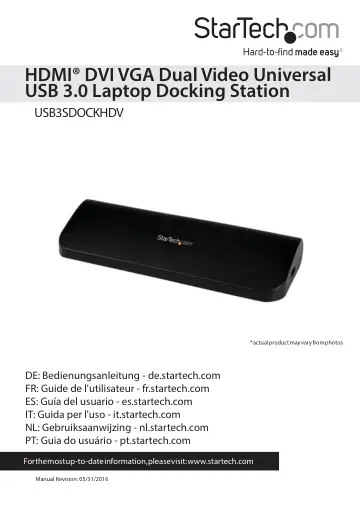
StarTech.com Dual Monitor USB 3.0 Laptop Docking Station (USB3SDOCKHDV) user manual
- Type
- User manual
- Language
- English
- Pages
- 15
- Category
- Monitors
- Models
- USB3SDOCKHDV
Open PDFOpens the file on objects.icecat.biz.
Contents
- Introductionp. 4
Packaging Contents • 1 x Docking Station • 1 x 0.9m USB 3.0 Cable • 1 x Universal Power Adapter (NA/UK/EU/AU) • 1 x Installation CD • 1 x Instruction Manual
- System Requirementsp. 4
USB 3.0 enabled computer system with available USB 3.0 port • Available AC electrical outlet • HDMI® (and either DVI-D or VGA if dual display is desired)…
- Rear Viewp. 5
- Side Viewsp. 5
- Installationp. 6
1. Connect the included power adapter from an AC electrical outlet to the USB Docking Station. 2. Insert the provided Driver CD into the computer’s CD/ DVD…
- Verifying Installationp. 7
1. Open the Device Manager by right-clicking on Computer, and then select Manage. In the new Computer Management window, select Device Manager from the left…
- Installing the Driversp. 7
1. Please insert the Driver CD into your computer’s CD-ROM or DVD drive. 2. Click Setup.exe. 3. Select your language and click “I Accept”. 4. Wait until the…
- How to Usep. 8
Configuring the image being displayed by the monitor that is connected to the USB 3.0 Docking Station, can be done in one of two ways: 1. Accessing the Windows…
- Display Modesp. 9
“Extend” Display Mode (DEFAULT) The default display mode; this mode allows the output on the USB 3.0 Docking Station to work as an “Extended” display to the…
- Supported Video Resolutionsp. 12
- Troubleshootingp. 13
Minor display issues can generally be resolved by: • Unplugging and re-plugging the DisplayLink device, • Changing the display mode via the DisplayLink GUI or…
- Technical Supportp. 14
StarTech.com’s lifetime technical support is an integral part of our commitment to provide industry-leading solutions. If you ever need help with your product…
- Warranty Informationp. 14
This product is backed by a two year warranty. In addition, StarTech.com warrants its products against defects in materials and workmanship for the periods…