Loading manual…
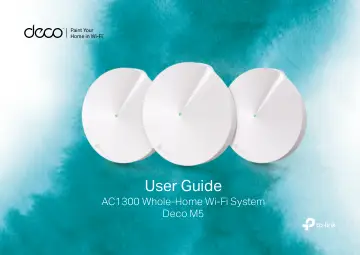
TP-Link AC1300 Deco Whole Home Mesh Wi-Fi System (DECO M5(1-PACK)) user manual
- Type
- User manual
- Language
- English
- Pages
- 20
- Category
- Routers & Wi-Fi
- Models
- DECO M5(1-PACK)DECO M5(2-PACK)DECO M5(3-PACK) V2
Open PDFOpens the file on objects.icecat.biz.
Contents
- About This Guidep. 3
This guide provides a brief introduction to Deco Whole-Home Wi-Fi System and the Deco app, as well as regulatory information. Please note that features of Deco…
- Appearancep. 4
Each Deco has an LED that changes color according to its status, two RJ-45 Ethernet ports and a power slot. See the explanation below: Yellow Start up. Blue…
- Set Up Your Decop. 5
Follow the steps below to set up your Deco Whole-Home Wi-Fi system. 1. Download and install the Deco app Scan the QR code below or go to Google Play or the…
- Dashboardp. 7
After you successfully set up your Deco network, you will see the dashboard of the Deco app. Here you can view the working status of all Decos, test the…
- Wi-Fi Settingsp. 8
Customize the network name and password of your main network or create a separate network just for guests. You can set a guest network name and an…
- Parental Controlsp. 9
Create profiles for family members and specify the devices that belong to each. Set individualized parental controls including when and for how long each…
- Antivirusp. 10
There are three ways Deco ensures your home network remains safe: by blocking malicious websites, by protecting the system and applications against external…
- QoSp. 11
There are two ways to use the QoS (Quality of Service) function. You can prioritize the connection of a particular device for a set duration, such as a family…
- Advanced Featuresp. 12
Additional features are available under the Advanced menu. Modify WAN settings (IPv4 & IPv6), control Deco's LED and turn notifications off and on. IPv4 IPv6…
- Online Upgradep. 13
TP-Link is dedicated to improving product features and providing a better customer experience. Update Deco when prompted in the Deco app. Update Available…
- Managersp. 14
Add friends and family members to help manage your network. Each manager should have their own TP-Link ID. Add as Manager Manager List Remove a Manager
- Authenticationp. 15
COPYRIGHT & TRADEMARKS Specifications are subject to change without notice. is a registered trademark of TP-Link Technologies Co., Ltd. Other brands and…