Loading manual…
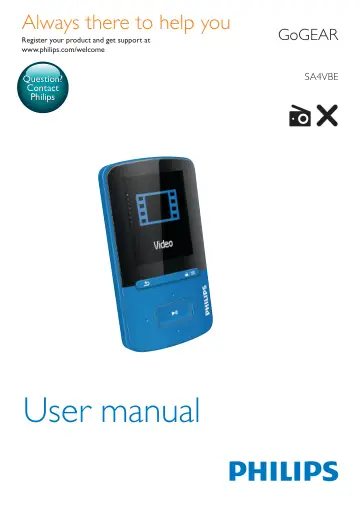
Philips MP4 player SA4VBE04KN/12 user manual
- Type
- User manual
- Language
- English
- Pages
- 28
- Models
- SA4VBESA4VBE04KN/12SA4VBE04PN/12SA4VBE08KN/12
Open PDFOpens the file on objects.icecat.biz.
Contents
- 1 Important safety informationp. 5
General maintenance The translation of this document is for reference only. In the event of any inconsistency between the English version and the translated…
- 2 Your new playerp. 8
What's in the box Make sure that you have received the following items: Player Earphones USB cable Quick start guide Safety and Warranty sheet Philips GoGear…
- 3 Get startedp. 11
Charge power VIBE has a built-in battery that can be charged through the USB socket of a computer. Connect VIBE to a PC by using the USB cable. Note • When you…
- 4 Musicp. 12
Transfer music to the player You can transfer music from your PC media library to VIBE in the following ways: • Drag and drop music files in Windows Explorer.…
- 5 Audiobooksp. 15
Go to > [Audiobooks] to play books in audio formats that you have downloaded from www.audible.com. Sync audio books to the player From www.audible.com…
- 6 Videosp. 17
Transfer videos to the player You can transfer videos to the player in two ways: • Transfer through Philips Media Converter; With the video converter software…
- 7 Picturesp. 19
Add pictures to the player 1 Connect VIBE to a computer. 2 On the PC, under My Computer or Computer, • select VIBE, and create file folders. 3 On the PC, drag…
- 8 Folder viewp. 20
Go to to view and play media files from the media library on the player.
- 9 Settingsp. 21
In , select your options for the player. 1 Press / to select an option. 2 Press to confirm. Play mode In [Play mode], select play modes for music play: [Play…
- 10 Update the firmware through Philips Device Managerp. 23
Install Philips Device Manager 1 Connect VIBE to a PC. 2 On the PC, select My Computer (Windows XP / Windows 2000) / Computer (Windows Vista / Windows 7 / 8).…
- 11 Troubleshootingp. 25
If VIBE is not working properly or the display freezes, you can reset it without losing data: How do I reset VIBE? • Insert a pen tip or other object into the…
- 12 Technical datap. 26
Power • Power supply: 290 mAh Li-ion polymer internal rechargeable battery • Play time¹ Music (.mp3): up to 20 hours (FullSound off); up to 12 hours (FullSound…