Loading manual…
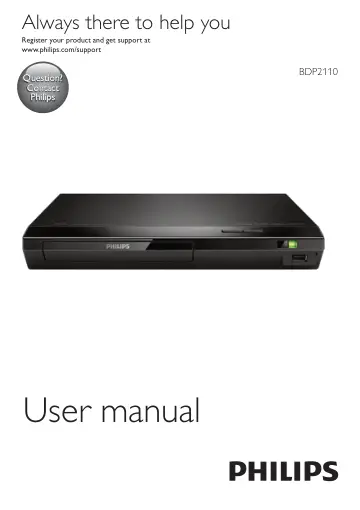
Philips Blu-ray Disc/DVD player BDP2110/12 user manual
- Type
- User manual
- Language
- English
- Pages
- 28
- Category
- Blu-ray & media players
- Models
- BDP2110BDP2110/12
Open PDFOpens the file on objects.icecat.biz.
Contents
- 1 Use your Blu-ray disc/ DVD playerp. 12
EN 1 Use your Bluray disc/ DVD player Congratulations on your purchase, and welcome to Philips! To fully benefit from the support that Philips offers (e.g.…
- Basic play controlp. 12
During play, press the following buttons to control. Button Action Turn on the player, or switch to standby. Access the home menu.
- Video, audio and picture optionsp. 13
More options are available for video or picture play from a disc or USB storage device. Video options Access more options during video play. • [Audio…
- DivX videosp. 14
You can play DivX videos from a disc or a USB storage device. VOD code for DivX • Before you purchase DivX videos and play them on this player, register this…
- Play a musical slideshowp. 15
Play music and pictures simultaneously to create a musical slideshow. 1 From a disc or connected USB storage device, play a music file. 2 Press , and go to the…
- Auto playp. 15
This player can automatically play a disc or a video file. Auto play disc When this player is switched on, the disc automatically plays. 1 Press (Home). 2…
- BonusView on Blu-rayp. 15
View special content (such as commentaries) in a small screen window. This feature is only applicable to Blu-ray discs compatible with BonusView (also known as…
- BD-Live on Blu-rayp. 16
Access exclusive online services, such as movie trailers, games, ringtones and other bonus contents. This feature is only applicable to Blu-ray discs that are…
- Set up a networkp. 16
(see "Set up a network"). 2 Connect a USB storage device to the (USB) connector on this player. • A USB storage device is used to store the downloaded BD-Live…
- Use Philips EasyLinkp. 16
This player supports Philips EasyLink which uses the HDMI CEC (Consumer Electronics Control) protocol. You can use a single remote control to control EasyLink…
- 2 Change settingsp. 17
This section helps you change the settings of this player. Note • You cannot change a menu option that is grayed out. • To return to the previous menu, press .…
- Picturep. 17
Press . 2 Select [Setup] > [Video] to access the video setup options. • [TV display]: Select a picture display format to fit the TV screen. • [HDMI video]…
- Soundp. 18
Press . 2 Select [Setup] > [Audio] to access the audio setup options. • [Night mode]: Select quiet or full dynamic sound. Night mode decreases the volume of…
- Network (installation, status...)p. 18
Press . 2 Select [Setup] > [Network] to access the network setup options. • [Network installation]: Start a wired installation to make the network work. •…
- Preference (languages, parental control...)p. 18
Press . 2 Select [Setup] > [Preference] to access the preference setup options. • [Menu language]: Select an onscreen display menu language. • [Audio]: Select…
- Advanced options (clear memory...)p. 19
Press . 2 Select [Setup] > [Advanced] to access the advanced setup options. • [BD-Live security]: Restrict or allow access to BD-Live (only for non-commercial…
- 3 Update softwarep. 19
Before you update the software of this player, check the current software version: • Press , and then select [Setup] > [Advanced] > [Version information], and…
- Update software via USBp. 19
Check the latest software version on www. philips.com/support. • Search for your model and click on "Software and drivers". 2 Download the software into a USB…
- 4 Product specificationsp. 20
Note • Specifications and design are subject to change without notice. Region code This player can play discs with the following region codes. DVD Blu-ray…
- 5 Troubleshootingp. 23
Warning • Risk of electric shock. Never remove the casing of the player. To keep the warranty valid, never try to repair the player yourself. If you have…