Loading manual…
Philips 243V5QHABA/00 user manual
- Type
- User manual
- Language
- English
- Pages
- 25
- Category
- Monitors
- Models
- 243V5QHABA/00243V5QHSBA/00
Open PDFOpens the file on objects.icecat.biz.
Contents
- 1. Importantp. 3
This electronic user’s guide is intended for anyone who uses the Philips monitor. Take time to read this user manual before you use your monitor. It contains…
- 1.1 Safety precautions and maintenancep. 3
Warnings Use of controls, adjustments or procedures other than those specified in this documentation may result in exposure to shock, electrical hazards and/or…
- 1.2 Notational Descriptionsp. 4
The following subsections describe notational conventions used in this document. Notes, Cautions and Warnings Throughout this guide, blocks of text may be…
- 1.3 Disposal of product and packing materialp. 5
Waste Electrical and Electronic Equipment- WEEE This marking on the product or on its packaging illustrates that, under European Directive 2012/19/EU governing…
- 2. Setting up the monitorp. 6
Install base stand 1. Place the monitor face down on soft and smooth surface taking care to avoid scratching or damaging the screen. 2. Attach the base column…
- 2.1 Installationp. 6
Package contents * VGA * Audio Power Register your product and get support at www.philips.com/welcome Quick Start * HDMI * DVI * Depends on the country
- 2.2 Operating the monitorp. 8
- 2.3 Remove Base Stand and Basep. 10
Remove the Base Stand Before you start disassembling the monitor base, please follow the instructions below to avoid any possible damage or injury. 1. Place…
- 3. Image Optimizationp. 12
3.1 SmartContrast What is it? A unique technology that dynamically analyzes displayed content and automatically optimizes an LCD monitor's contrast ratio for…
- 3.1 SmartContrastp. 12
What is it? A unique technology that dynamically analyzes displayed content and automatically optimizes an LCD monitor's contrast ratio for maximum visual…
- 3.2 Philips SmartControl Litep. 12
- 4. Technical Specificationsp. 13
Picture/Display Monitor Panel Type TN-LCD(243V5L);MVA LCD(243V5Q) Backlight W-LED system Panel Size 23.6" W (59.9 cm) Aspect Ratio 16:9 Pixel Pitch 0.272 ×…
- 4.1 Resolution & Preset Modesp. 16
- 5. Power Managementp. 17
If you have VESA DPM compliance display card or software installed in your PC, the monitor can automatically reduce its power consumption when not in use. If…
- 6. Regulatory Informationp. 1
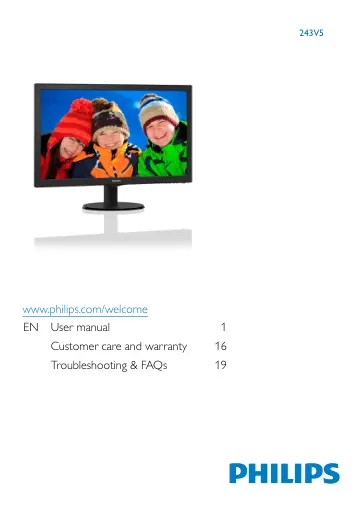
www.philips.com/welcome 243V5 EN User manual 1 Customer care and warranty 16 Troubleshooting & FAQs 19
- 7. Customer care and warrantp. 18
6. Customer care and warranty 6. Customer care and warrant 6.1 Philips’ Flat Panel Monitors Pixel Defect Policy Philips strives to deliver the highest quality…
- 7.1 Philips’ Flat Panel Monitors Pixel Defect Policyp. 18
- 7.2 Customer Care & Warrantyp. 1
- 8. Troubleshooting & FAQsp. 21
7. Troubleshooting & FAQs 7. Troubleshooting & FAQs 7.1 Troubleshooting This page deals with problems that can be corrected by a user. If the problem still…
- 8.1 Troubleshootingp. 21
- 8.2 General FAQsp. 22
7. Troubleshooting & FAQs Image appears blurred, indistinct or too dark • Adjust the contrast and brightness on On-Screen Display. An "after-image", "burn-in"…