Loading manual…
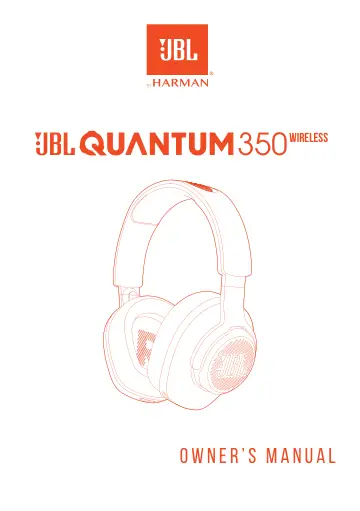
JBL Quantum 350 BLACK (JBLQ350WLBLK) user manual
- Type
- User manual
- Language
- English
- Pages
- 16
- Category
- Headphones & headsets
- Models
- JBLQ350WLBLK
Open PDFOpens the file on objects.icecat.biz.
Contents
- Introductionp. 3
Congratulations on your purchase! This manual includes information on the gaming headset. We encourage you to take a few minutes to read this manual, which…
- What’s in the boxp. 4
- PRODUCT OVERVIEWp. 5
Controls on headset 03 04 05 06 07 08 01 Volume +/- dial • Adjusts headset volume. 02 button • Press to mute or unmute the microphone. 03 Charging LED •…
- Controls on headsetp. 5
04 05 06 07 08 01 Volume +/- dial • Adjusts headset volume. 02 button • Press to mute or unmute the microphone. 03 Charging LED • Indicates the charging and…
- Controls on 2.4G USB wireless donglep. 6
10 01 button • Hold for more than 5 seconds to enter 2.4G wireless pairing mode. 02 LED • Indicates the status of 2.4G wireless connection.
- Getting startedp. 7
Charging your headset 2HR Before use, fully charge your headset through the supplied USB-A to USB-C charging cable. TIPS: • It takes approximately 2 hours to…
- Charging your headsetp. 7
2HR Before use, fully charge your headset through the supplied USB-A to USB-C charging cable. TIPS: • It takes approximately 2 hours to fully charge the…
- Wearing your headsetp. 8
1. Attach the detachable boom microphone. 1. Put the side marked L onto your left ear and the side marked R onto your right ear. 2. Adjust the earpads and…
- Power onp. 9
Slide the power switch upwards to power on the headset. • Slide downwards to power off. The status LED glows solid white upon powering on
- First-time setup (for PC only)p. 9
Download from jblquantum.com/engine to gain access to 3D audio technologies. Software requirements Platform: Windows 7 (64 bit) / Windows 10 (64 bit) only…
- Using your headsetp. 11
2.4G 1. Plug the 2.4G USB wireless dongle into a USB-A port on your PC, Mac, PS4/PS5 console, or Nintendo Switch™ console. 2. Power on the headset. It will…
- Product Specificationsp. 13
Driver size: 40 mm dynamic drivers • Frequency response: 20 Hz - 20 kHz • Microphone frequency response: 100 Hz - 10 kHz • Sensitivity: 115 dB SPL @1 kHz •…
- Troubleshootingp. 14
If you have problems using this product, check the following points before you request service. No power • The headset turns off automatically after 10 minutes…