Loading manual…
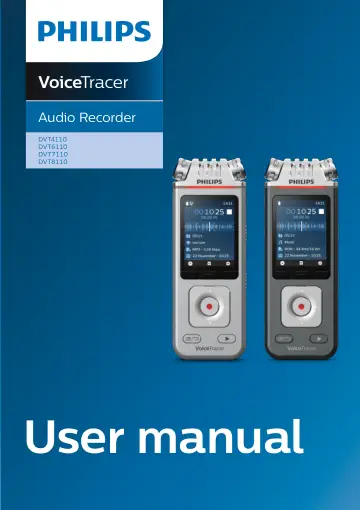
Philips DVT7110/00 user manual
- Type
- User manual
- Language
- English
- Pages
- 24
- Category
- Microphones
- Models
- DVT4110DVT4110/00DVT6110DVT6110/00DVT7110DVT7110/00DVT8110DVT8110/00
Open PDFOpens the file on objects.icecat.biz.
Contents
- 2 Your VoiceTracer audio recorderp. 6
We are delighted that you have chosen a Philips device. Visit our website for comprehensive support, such as user manuals, software downloads, warranty…
- Product highlightsp. 6
Superior recording quality • Audio scenes • Voice-activated recording • MP3 and PCM recording • Large color display • 8 GB internal memory • Long-lasting…
- What's in the boxp. 6
Quick start guide DVT7110 DVT7110 DVT7110 DVT8110 DVT8110 6 Your VoiceTracer audio recorder
- Overview of your audio recorderp. 7
- 3 Get startedp. 8
Caution • Before you connect your VoiceTracer, first read the safety instructions (see Safety instructions)
- Charging the batteryp. 8
Charge the built-in battery before you use the device for the first time or if you haven’t used it for an extended time period. If the battery is completely…
- Turn the device on and offp. 8
To turn the device on or off: • Slide and hold the Power switch on the right side of the device downwards for three seconds. 3 sec
- Key lockp. 8
You can lock your device when it’s active to prevent any unwanted device operations or access. To lock the device: • Slide the Power switch on the right side…
- Connect to a computerp. 9
You can use your recorder as a USB mass storage to conveniently store, back up and move files. Link the device to a computer with a USB cable. Your recorder…
- Set the date and timep. 9
You can always change the date and time as well as the time format on your device. 1 In stop mode, press the Right function button to open the settings panel.…
- Set the device languagep. 9
You can always change the language of your device. 1 In stop mode, press the Right function button to open the settings panel. 2 Press the Record button to…
- 4 Recordingp. 10
Record a file Note • Be careful not to cover the microphones while recording. This might result in a lower recording quality. • If the recording time of your…
- Record a filep. 10
Note • Be careful not to cover the microphones while recording. This might result in a lower recording quality. • If the recording time of your current…
- Edit a filep. 10
You can edit existing recordings in stop mode by appending or overwriting a recording. Append: Add additional recording parts at the end of an existing…
- 5 Playbackp. 11
Play back files Note • If you have connected headphones to your VoiceTracer, the built-in speakers are disabled. Start and stop playback 1 In stop mode, press…
- Play back filesp. 11
Note • If you have connected headphones to your VoiceTracer, the built-in speakers are disabled. Start and stop playback 1 In stop mode, press the Previous…
- Delete filesp. 11
You can delete individual files from your device. 1 In stop mode or playback mode, press the Right function button to open the settings panel. 2 Press the…
- 6 Settingsp. 12
Settings mode In the settings mode, you can change and adjust various settings according to your own preferences. On Noise cut 1 2 3 1 Recording settings 2…
- Settings modep. 12
In the settings mode, you can change and adjust various settings according to your own preferences. On Noise cut 1 2 3 1 Recording settings 2 Playback settings…
- 7 Connect to VoiceTracer Appp. 14
You can connect your VoiceTracer to the dedicated Philips VoiceTracer App via Wi-Fi. This allows you to remotely control your VoiceTracer with your smartphone.…
- 8 How to use the meeting microphone (DVT8110 only)p. 15
The meeting microphone can be used during a meeting or a multi-participant conference. For optimum sound quality, the participants should not be more than two…
- 9 Connect to video camera (DVT7110 only)p. 16
You can use your VoiceTracer as an external microphone for a video or DSLR camera. This ensures the best audio quality for your videos. To connect your…
- 10 Device and data managementp. 17
Transfer data to the computer You can quickly and conveniently move files from your VoiceTracer to your computer. Link the device to a computer with a USB…
- Transfer data to the computerp. 17
You can quickly and conveniently move files from your VoiceTracer to your computer. Link the device to a computer with a USB cable. Your recorder will…
- Updating your devicep. 18
Your device is controlled by an internal program called firmware. As a part of ongoing product maintenance, the firmware is upgraded and errors are corrected.…
- 11 Troubleshootingp. 20
Find the most common problems you could encounter with the VoiceTracer in the following table. If you are unable to solve the problem with the information…
- 12 Technical datap. 21
Connectivity • Headphones: stereo jack, 3.5 mm, impedance 16 Ohm or more • Microphone: stereo jack, 3.5 mm, impedance 2 kOhm • USB: type C, high-speed 2.0…