Loading manual…
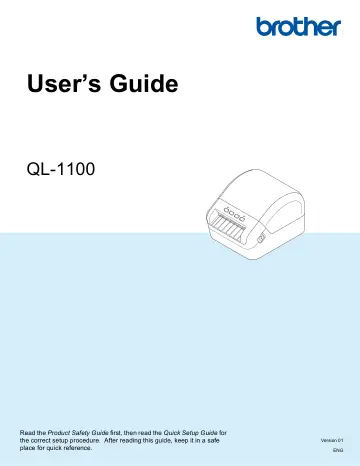
Brother QL-1100 quick start guide
- Type
- Quick start guide
- Language
- English
- Pages
- 133
- Category
- Printers
- Models
- QL-1100
Open PDFOpens the file on objects.icecat.biz.
Contents
- Introductionp. 2
Important Notice The contents of this document and the specifications of this product are subject to change without notice. Brother reserves the right to…
- Important Noticep. 2
The contents of this document and the specifications of this product are subject to change without notice. Brother reserves the right to make changes without…
- Available Manualsp. 2
Visit the Brother Solutions Center at support.brother.com and click Manuals on your model page to download the latest manuals. 1 Printed manual in the box 2…
- Symbols Used in This Guidep. 3
The following symbols are used throughout this guide: Indicates a potentially hazardous situation which, if the product is handled without following the…
- Basic Operationsp. 9
I Set Up the Label Printer 2 Print Using a Computer (P-touch Editor) 9 Print Using P-touch Editor Lite (Windows® only) 13 Print Using a Mobile Device 16 Change…
- 1 Set Up the Label Printerp. 10
- 2 Print Using a Computer (P-touch Editor)p. 17
2 2 Install Printer Drivers and Software on a Computer 2 To print from your Windows® computer or Mac, install the printer drivers, P-touch Editor, and other…
- 3 Print Using P-touch Editor Lite (Windows® only)p. 21
3 3 P-touch Editor Lite 3 P-touch Editor Lite is a Label creation software application for computers. With P-touch Editor Lite, there is no need to install the…
- 4 Print Using a Mobile Devicep. 24
4 4 Install Applications for Use with Mobile Devices 4 You can use your Label Printer as a stand-alone printer or connect it to a mobile device. To create and…
- 5 Change the Label Printer Settingsp. 27
5 5 Printer Setting Tool for Windows® 5 Use the Printer Setting Tool to specify the Label Printer's device settings and P-touch Template settings from a…
- 6 Print Labels Using P-touch Templatep. 43
6 6 P-touch Template Operations 6 P-touch Template mode allows you to insert data into text and barcode objects from a downloaded template using an optional…
- 7 Other Functionsp. 58
7 7 Confirm Label Printer Settings 7 You can print a Settings Report without connecting the Label Printer to a computer or mobile device. a Turn on the Label…
- Applicationp. 66
II How to Use P-touch Editor 59 How to Use the P-touch Address Book (Windows® only) 65 How to Use P-touch Editor Lite (Windows® only) 70 How to Use P-touch…
- 8 How to Use P-touch Editorp. 67
8 8 To use your Label Printer with your computer, install P-touch Editor and the printer driver. For the latest drivers and software, visit support.brother.com…
- 9 How to Use the P-touch Address Book (Windows® only)p. 73
9 9 This section describes how to efficiently create labels from contacts using the P-touch Address Book. The screens may differ depending on your operating…
- 10 How to Use P-touch Editor Lite (Windows® only)p. 78
10 10 With P-touch Editor Lite, you can quickly create various simple label layouts without installing any drivers or software. P-touch Editor Lite is only…
- 11 How to Use P-touch Transfer Manager and P-touch Library (Windows® only)p. 82
11 11 P-touch Transfer Manager 11 This program allows you to transfer templates and other data to the Label Printer and save backups of your data on the…
- 12 How to Transfer Templates with P-touch Transfer Express (Windows® only)p. 99
12 12 You can transfer templates to the Label Printer using P-touch Transfer Express. First, the administrator creates a template, and then distributes it…
- 13 How to Update P-touch Softwarep. 107
13 13 The software can be upgraded to the latest available version using the P-touch Update Software. Note • The actual software and the contents of this…
- Appendixp. 113
III Reset the Label Printer 106 Maintenance 107 Troubleshooting 109 Product Specifications 117 Software Development Kit 118 Notes on Using P-touch Transfer…
- 14 Reset the Label Printerp. 114
14 14 Reset the internal memory of your Label Printer to clear all the saved label files, or if the Label Printer is not operating correctly. Reset All…
- 15 Maintenancep. 115
15 15 We recommend cleaning your Label Printer on a regular basis to maintain its correct performance. Note Always disconnect the AC Power Cord before cleaning…
- 16 Troubleshootingp. 117
16 16 Overview 16 This chapter explains how to resolve typical problems you may encounter when using the Label Printer. If you have any problems with the Label…
- 17 Product Specificationsp. 125
Size Dimensions Approximately 6.70 (W) x 8.75 (D) x 5.95 (H) in./170 (W) x 222 (D) x 151 (H) mm Weight Approximately 3.79 lb (1,715 g) (without DK Rolls) LED…
- 18 Software Development Kitp. 126
18 18 A Software Development Kit (SDK) is available. Visit the Brother Developer Center (www.brother-usa.com/lp/civ/home.aspx). The b-PAC SDK and the SDKs for…
- 19 Notes on Using P-touch Transfer Managerp. 127
19 19 Because some P-touch Editor functions are not available with the Label Printer, keep the following points in mind when using P-touch Editor to create…
- 20 List of Barcodes for the P-touch Template Functionp. 128
20 20 General Procedure for the P-touch Template Function 20 The general procedure for using the P-touch Template function is described below. For more…
- 21 Use the Brother Barcode Scanner (Optional: PA-BR-001)p. 132
21 21 P-touch template mode provides operations for inserting data into text and barcode objects in a downloaded template from a Barcode Scanner to the…
- brother ENGp. 133