Loading manual…
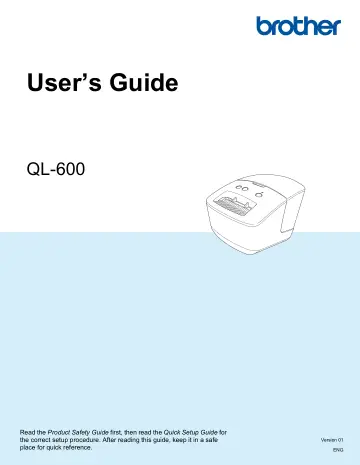
Brother QL-600B quick start guide
Open PDFOpens the file on objects.icecat.biz.
Contents
- Introductionp. 2
Important Notice The contents of this document and the specifications of this product are subject to change without notice. Brother reserves the right to…
- Important Noticep. 2
The contents of this document and the specifications of this product are subject to change without notice. Brother reserves the right to make changes without…
- Available Manualsp. 2
Visit the Brother support website at support.brother.com and click Manuals on your model page to download the latest manuals. 1 Printed manual in the box 2 PDF…
- Symbols Used in This Guidep. 3
The following symbols are used throughout this guide: Indicates a potentially hazardous situation which, if the product is handled without following the…
- Section I: Basic Operationsp. 7
Section I Basic Operations I Set Up the Label Printer 2 Print Using a Computer (P-touch Editor) 8 Change the Label Printer Settings 12
- 1 Set Up the Label Printerp. 8
- 2 Print Using a Computer (P-touch Editor)p. 14
2 2 Install the Printer Driver and Software on a Computer 2 To print from your Windows computer or Mac, install the printer driver, P-touch Editor, and other…
- 3 Change the Label Printer Settingsp. 18
3 3 Printer Setting Tool for Windows 3 Use the Printer Setting Tool to specify the printer’s device settings and P-touch Template settings from a Windows…
- Section II: Applicationp. 28
Section II Application II How to Use P-touch Editor 23 How to Use the P-touch Address Book (Windows only) 29 How to Use P-touch Library (Windows only) 33 How…
- 4 How to Use P-touch Editorp. 29
4 4 To use your label printer with your computer, install P-touch Editor and the printer driver. For the latest drivers and software, visit support.brother.com…
- 5 How to Use the P-touch Address Book (Windows only)p. 35
5 5 This section describes how to efficiently create labels from contacts using the P-touch Address Book. The screens may differ depending on your operating…
- 6 How to Use P-touch Library (Windows only)p. 39
6 6 This program allows you to manage and print P-touch Editor templates. Start P-touch Library 6 For Windows 7: Click Start > All Programs > Brother P-touch…
- 7 How to Update P-touch Softwarep. 45
7 7 The software can be upgraded to the latest available version using the P-touch Update Software. Note • The actual software and the contents of this manual…
- Section III: Appendixp. 51
Section III Appendix III Reset the Label Printer 46 Maintenance 47 Troubleshooting 48 Product Specifications 54 Printing directly from other Windows software 55
- 8 Reset the Label Printerp. 52
8 8 Reset your printer’s device settings if the printer is not operating correctly. Reset Device Settings to the Factory Settings Using the Label Printer…
- 9 Maintenancep. 53
9 9 We recommend cleaning your printer on a regular basis to maintain its correct performance. Note Always disconnect the AC Power Cord before cleaning the…
- 10 Troubleshootingp. 54
Problem Solution The "Device driver software was not successfully installed." message appears on the computer. • Although such Windows messages may continue to…
- 11 Product Specificationsp. 60
Items Specifications Display Status LED (green, orange, red) Print Printing method Direct thermal printing via thermal head Speed of printing Max. 71 mm/sec…
- 12 Printing directly from other Windows softwarep. 61
12 12 You can use this machine to print directly from various Windows software, by installing the printer driver. IMPORTANT Because the paper size for this…