Loading manual…
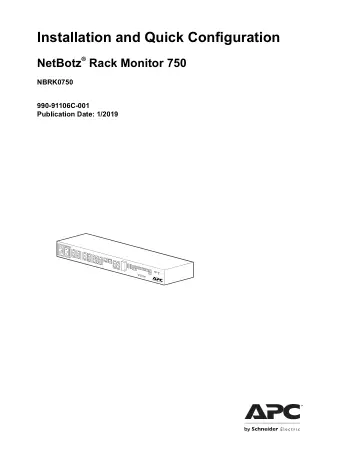
APC ® Rack Monitor 750 (NBRK0750) user manual
- Type
- User manual
- Language
- English
- Pages
- 24
- Category
- Monitors
- Models
- NBRK0750
Open PDFOpens the file on objects.icecat.biz.
Contents
- Safetyp. 5
Read the instructions carefully to become familiar with the equipment before trying to install, operate, service, or maintain it. The following special…
- Safety Information for the NetBotz Rack Monitor 750p. 5
DANGER DANGER indicates an imminently hazardous situation which, if not avoided, will result in death or serious injury. WARNING WARNING indicates a…
- General Informationp. 6
The NetBotz® Rack Monitor 750 Installation and Quick Configuration Manual describes how to install a NetBotz Rack Monitor 750, connect devices to the…
- Product Descriptionp. 6
The APC by Schneider Electric™ NetBotz Rack Monitor 750 functions as the central hardware appliance for a NetBotz security and environmental monitoring system.…
- Additional Optionsp. 6
The following sensors and devices are compatible with the Rack Monitor 750. For more information about any of these options, contact your APC by Schneider…
- Updates and Related Documentsp. 6
You can find updates to this document, the User Guide, and the Release Notes on the applicable product page of the APC by Schneider Electric website…
- Inventoryp. 7
Inspect the contents of the package to ensure that the parts included match those shown below. Report missing or damaged contents to APC by Schneider Electric…
- Physical Descriptionp. 8
*Not supported on firmware version 5.0. Update the firmware to access these features. Item Description AC line inlet Input power connection. See…
- Care and Disposalp. 9
To clean the Rack Monitor 750, gently wipe its surfaces with a clean, dry cloth. NetBotz Rack Monitor appliances contain non-replaceable, lithium coin-cell…
- Installationp. 10
and Quick Configuration Manual 6 Installation Install the appliance in an environment compatible with the maximum ambient temperature (see “Specifications” on…
- Cage Nutsp. 10
Install a cage nut APC by Schneider Electric offers a cage nut hardware kit (AR8100) for use with square holes. 1. Install cage nuts horizontally, with the…
- Install the Rack Monitor 750p. 11
The appliance requires 1 U of rack space. 1. Choose a location for the appliance in the front or rear of the rack. The appliance occupies one U-space. A…
- Connect the Power Cord and Network Cablep. 12
Use the provided power cords with only APC by Schneider Electric NetBotz products. 1. Connect the appropriate power cord to the AC Line Inlet of the appliance.…
- Connect Sensors and Devicesp. 13
The following standard sensors and devices connect to specific ports (see “Physical Description” on page 4 for port details): *See “Configure Outlet-controlled…
- Initial Configurationp. 16
You must configure the following TCP/IP settings before the appliance can operate on a network: • IP address of the appliance • Subnet mask • Default gateway •…
- Use DHCP to Establish Network Settingsp. 16
By default, your appliance looks for a properly configured DHCP server to configure the network settings. When you apply power to the appliance, it…
- Use a Terminal Emulator to Establish Network Settingsp. 16
1. Connect a USB-A to Micro USB-B cable to the Console Port on the NetBotz appliance and a USB port on your computer. 2. Plug the power cord provided with your…
- Access the Appliancep. 17
After the network settings are configured, you can access the appliance through the Web UI. The Web UI provides a real-time overview of alerts and device…
- Configure a Wireless Sensor Networkp. 19
You can add a total of 47 wireless end devices to your network. 1. Connect the wireless network (See “Connect a wireless sensor network” on page 11) 2. In the…
- Configure Outlet-controlled Devicesp. 19
This procedure applies to devices connected to the beacon port, switched outlet, or relay output ports. See the User Guide on www.apc.com for details. 1.…
- Update the Firmwarep. 19
1. Download the latest firmware version from the applicable product page on www.apc.com. 2. In the Web UI, select Settings, then select Firmware Update. 3.…
- Specificationsp. 20
Electrical Input voltage, nominal 100–240 VAC, 10 A, 50/60 Hz Maximum total current draw 12 A w/10 A Max. on Aux. Outlet Physical Dimensions (H x W x D) 43.5 x…
- Sensor Specificationsp. 21
Beacon Maximum cable length 100 m (330 ft) 3.65-m (12-ft) Door Switch Sensor for APC Racks (NBES0303), 15.24-m (50-ft) Door Switch Sensor for Rooms or Third…
- Two-Year Factory Warrantyp. 22
This warranty applies only to the products you purchase for your use in accordance with this manual. Terms of warranty APC by Schneider Electric warrants its…