Loading manual…
APC Back-UPS PRO BR900G-GR user manual
Open PDFOpens the file on objects.icecat.biz.
Contents
- Inventoryp. 1
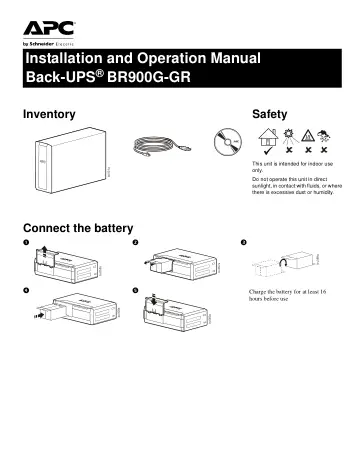
Safety This unit is intended for indoor use only. Do not operate this unit in direct sunlight, in contact with fluids, or where there is excessive dust or…
- Safetyp. 1
This unit is intended for indoor use only. Do not operate this unit in direct sunlight, in contact with fluids, or where there is excessive dust or humidity. 1…
- Connect the batteryp. 1
Inventory Safety This unit is intended for indoor use only. Do not operate this unit in direct sunlight, in contact with fluids, or where there is excessive…
- PowerChute® Personal Edition Softwarep. 2
Overview PowerChute Personal Edition Software allows you to use your computer to access additional power protection and management features of the Back-UPS.…
- Overviewp. 2
PowerChute Personal Edition Software allows you to use your computer to access additional power protection and management features of the Back-UPS. Using…
- Compatibilityp. 2
PowerChute is compatible with Windows operating systems only. For a detailed list of supported operating systems, go to www.apc.com, select Software &…
- Installationp. 2
and Operation 2 PowerChute® Personal Edition Software Overview PowerChute Personal Edition Software allows you to use your computer to access additional power…
- Connect the equipmentp. 3
Battery Backup and Surge Protected outlets When the Back-UPS is receiving input power, the Surge Protection only outlets and the Battery Backup with Surge…
- Battery Backup and Surge Protected outletsp. 3
When the Back-UPS is receiving input power, the Surge Protection only outlets and the Battery Backup with Surge Protection outlets will supply power to…
- Master and Controlled outletsp. 3
To conserve electricity, when the device connected to Master Outlet goes into Sleep or Standby mode, or turns off, the Controlled by Master device(s) will shut…
- Operationp. 4
- Power-Saving Functionp. 4
To conserve electricity, configure the Back-UPS to recognize a Master device, such as a desktop computer or an A/V receiver, and Controlled peripheral devices…
- Power-Saving Displayp. 4
The display interface can be configured to be continuously illuminated, or to save energy, it can be configured to extinguish after a period of inactivity. 1.…
- Unit sensitivityp. 4
In situations where the Back-UPS or connected equipment appears too sensitive to input voltage, it may be necessary to adjust the transfer voltage. Adjust the…
- Front Panel Buttons and Display Interfacep. 5
Use the three buttons on the front panel of the Back-UPS and the display interface to configure the Back-UPS. Front panel 1 Mute button 2 Power On/Off button 3…
- Warnings and System Faultsp. 6
- Audible Warningsp. 6
- Warning Iconsp. 6
System Faults The Back-UPS will display these fault messages. Four Beeps Every 30 Seconds Back-UPS is running on battery. You should consider saving any work…
- System Faultsp. 6
Audible Warnings Warning Icons System Faults The Back-UPS will display these fault messages. Four Beeps Every 30 Seconds Back-UPS is running on battery. You…
- Function Button Quick-Referencep. 7
Function Button Timing (seconds) UPS Status Description Power Power On 0.2 Off Press POWER to start receiving input A/C power. If A/C input power is not…
- Troubleshootingp. 8
Problem Possible Cause Corrective Action Back-UPS will not turn on. The Back-UPS is not connected to A/C power. Ensure that the Back-UPS is securely connected…
- Specificationsp. 9
- APC Customer Support Worldwidep. 9
Warranty The standard warranty is two (2) years from the date of purchase. APC standard procedure is to replace the original unit with a factory reconditioned…
- Warrantyp. 9
The standard warranty is two (2) years from the date of purchase. APC standard procedure is to replace the original unit with a factory reconditioned unit.…
- Servicep. 10
If the unit requires service, do not return it to the dealer. Follow these steps: 1. Review the TROUBLESHOOTING section of the manual to eliminate common…