Loading manual…
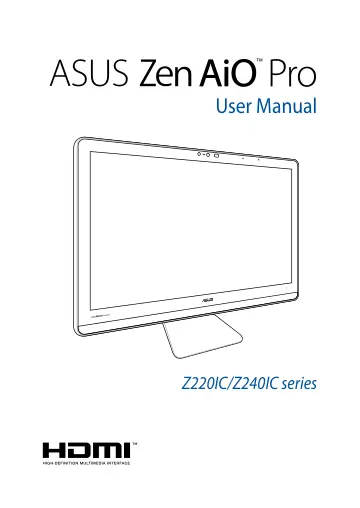
ASUS Z240ICGT-GJ168X (90PT01E1-M05220) user manual
- Type
- User manual
- Language
- English
- Pages
- 64
- Category
- Desktops & servers
- Models
- Z240ICGT-GJ168X
Open PDFOpens the file on images.icecat.biz.
Contents
- About this manualp. 6
This manual provides information about the hardware and software features of your ASUS All-in-One PC, organized through the following chapters: Chapter 1…
- Conventions used in this manualp. 7
To highlight key information in this manual, some texts are presented as follows: IMPORTANT! This message contains vital information that must be followed to…
- Safety informationp. 9
Your ASUS All-in-One PC is designed and tested to meet the latest standards of safety for information technology equipment. However, to ensure your safety, it…
- Chapter 1: Hardware Setupp. 13
3D Camera module (on selected models) The built-in camera allows you to take pictures or record videos using your ASUS All-in-One PC. The 3D camera module also…
- ASUS Zen AiO Pro PCp. 13
- Chapter 2: Using your ASUS All-in-One PCp. 19
1. Place your ASUS All-in-One PC on a flat surface such as a table or desk. 2. Tilt the display to an angle between -5 o to 25 o. IMPORTANT! • Use both hands…
- Positioning your ASUS All-in-One PCp. 19
- Setting up your ASUS All-in-One PCp. 20
Connecting the wireless keyboard and mouse 1. Install batteries into the wireless keyboard and mouse. 3. You can begin using the wireless keyboard and mouse.…
- Using the touch screen (on selected models)p. 23
The LCD screen panel of your ASUS All-in-One PC provides excellent viewing features for photos, videos, and other multimedia files on your PC. NOTE: The…
- Chapter 3: Working with Windows® 10p. 27
Starting for the first time When you start your ASUS All-in-One PC for the first time, a series of screens appear to guide you in configuring your Windows® 10…
- Starting for the first timep. 27
When you start your ASUS All-in-One PC for the first time, a series of screens appear to guide you in configuring your Windows® 10 operating system. To start…
- Start menup. 28
The Start menu is the main gateway to your ASUS All-in-One PC’s programs, Windows® apps, folders, and settings. You can use the Start menu to do these common…
- Windows® appsp. 30
These are apps pinned on the right pane of the Start menu and displayed in tiled-format for easy access. NOTE: Some Windows® apps require signing in to your…
- Task viewp. 34
Quickly switch between opened apps and programs using the task view feature, you can also use task view to switch between desktops. Launching task view Tap the…
- Snap featurep. 35
The Snap feature displays apps side-by-side, allowing you to work or switch between apps. Snap hotspots You can drag and drop apps to these hotspots to snap…
- Action Centerp. 37
consolidates notifications from apps and presents a single place where you can interact with them. It also has a really useful Quick Actions section at the…
- Other keyboard shortcutsp. 38
Using the keyboard, you can also use the following shortcuts to help you launch applications and navigate Windows® 10. \ Launches Start menu Launches Action…
- Connecting to wireless networksp. 40
Wi-Fi Access emails, surf the Internet, and share applications via social networking sites using your ASUS All-in-One PC’s Wi-Fi connection. Connecting Wi-Fi…
- Connecting to wired networksp. 42
You can also connect to wired networks, such as local area networks and broadband Internet connection, using your ASUS All-in-One PC’s LAN port. NOTE: Contact…
- Turning your ASUS All-in-One PC offp. 44
You can turn off your ASUS All-in-One PC by doing either of the following procedures: or • Launch the Start menu, then select > Shut down to do a normal…
- Chapter 4: Recovering your systemp. 47
Entering the BIOS Setup BIOS (Basic Input and Output System) stores system hardware settings that are needed for system startup in the ASUS All-in-One PC. In…
- Entering the BIOS Setupp. 47
BIOS (Basic Input and Output System) stores system hardware settings that are needed for system startup in the ASUS All-in-One PC. In normal circumstances, the…
- Recovering your systemp. 48
Using recovery options on your ASUS All-in-One PC allows you to restore the system to its original state or simply refresh its settings to help improve…
- Appendicesp. 51
Federal Communication Commission Interference Statement This equipment has been tested and found to comply with the limits for a Class B digital device…
- Noticesp. 51