Loading manual…
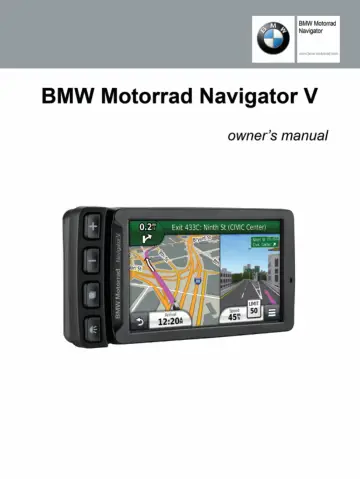
Garmin BMW Nav V user manual
- Type
- User manual
- Language
- English
- Pages
- 22
- Category
- GPS & navigation
- Models
- BMW Nav V
Open PDFOpens the file on static.garmin.com.
Contents
- Getting Startedp. 5
WARNING See the Important Safety and Product Information guide in the product box for product warnings and other important information. Contact Information If…
- About Locationsp. 7
The maps loaded in your device contain locations, such as restaurants, hotels, auto services, and street information. You can use categories to browse for…
- Navigationp. 9
Starting a Route 1 Search for a location. 2 Select a location. 3 Select Go!. Previewing Multiple Routes 1 Search for a location. 2 From the search results…
- Map Pagesp. 10
Customizing the Map Customizing the Map Layers You can customize which data appear on the map, such as icons for points of interest and road conditions. 1…
- Hands-Free Voice Promptsp. 11
About Wireless Headsets NOTE: To listen to high-quality audio wirelessly, you can connect to a Bluetooth headset that supports the A2DP profile. Using wireless…
- Using the Appsp. 11
Using Help Select Apps > Help to view information about using the device. Searching Help Topics Select Apps > Help > . Hands-Free Voice Prompts 7
- Trafficp. 14
NOTICE Garmin is not responsible for the accuracy or timeliness of the traffic information. Traffic information is available only through Smartphone Link.…
- Data Managementp. 15
You can store files on your device. The device has a memory card slot for additional data storage. NOTE: The device is not compatible with Windows ® 95, 98…
- Customizing the Devicep. 15
Map and Vehicle Settings To open the Map and Vehicle settings, from the main menu, select Settings > Map & Vehicle. Vehicle: Sets the icon that represents your…
- Appendixp. 17
Power Cables Your device can be powered various ways. • Vehicle power cable • USB cable • AC adapter (optional accessory) Charging the Device You can charge…
- Troubleshootingp. 18
My device is not acquiring satellite signals • Verify the GPS simulator is turned off. • Take your device out of parking garages and away from tall buildings…
- Specificationsp. 18