Loading manuals…
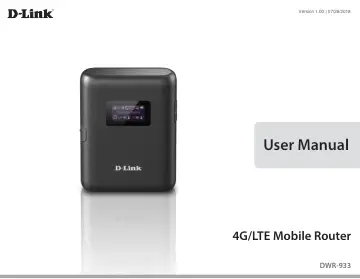
D-Link DWR-933 manual
D-Link Cat 6 Mobile Wi-Fi 4G Hotspot 300 Mbps · Routers & Wi-Fi
1 document
What's in the D-Link DWR-933 user manual
From D-Link Cat 6 Mobile Wi-Fi 4G Hotspot 300 Mbps (DWR-933) user manual · 98 pages · English. Tap a section to open the PDF at its page.
- Product Overviewp. 5
Package Contents D-Link DWR-933 4G/LTE Mobile Router USB Cable If any of the above items are missing or damaged, please contact your reseller. EU Battery &…
- System Requirementsp. 6
Network Requirements • A compatible micro-SIM/UICC card with mobile data service1 Web-based Configuration Utility Requirements Computer with the following: •…
- Introductionp. 7
High-Speed Mobile Internet with LTE Connectivity The DWR-933 4G/LTE Mobile Router gives you high-speed Internet wherever you are and lets you share it on the…
- Hardware Overviewp. 8
Overview 1 Micro USB Connector Use the included cable to connect to a powered USB port kto charge the device, or connect to a computer to access the…
- Installationp. 11
Initial Setup Installation This section will guide you through the installation process. 1. Lift off the back cover by using the notch on the bottom. 2. Remove…
- Initial Setupp. 11
Installation This section will guide you through the installation process. 1. Lift off the back cover by using the notch on the bottom. 2. Remove the battery…
- Wireless Installation Considerationsp. 12
The DWR-933 can be accessed using a wireless connection from anywhere within the operating range of its wireless network. Keep in mind that the quantity…
- Configurationp. 13
Initial Connection to the Router This section will show you how to configure your new D-Link mobile router using the configuration utility that can be accessed…
- Initial Connection to the Routerp. 13
This section will show you how to configure your new D-Link mobile router using the configuration utility that can be accessed via your web-browser. By…
- Web-based Configurationp. 16
To access the configuration utility, open a web browser (such as Internet Explorer) and enter the IP address of the router, which is 192.168.0.1 by default in…
- Navigationp. 17
The Internet tab allows you to configure your Internet settings, including details about your mobile operator. The Wi-Fi tab allows you to configure your Wi-Fi…
- Quick Accessp. 18
A quick access page will be displayed on the initial home page for the DWR-933. The headings below link through to windows where you can alter settings in more…
- Network Setupp. 19
Setup Wizard The Wizard page will guide you through the steps required to configure the basic settings of your router, such as the IP address, network name…
- Internet Settingsp. 26
Network Status Displays your current network provider and signal strength. Displays the type of network you are connected to, such as 2G, 3G or LTE. The length…
- Wi-Fi Settingsp. 33
Wi-Fi Status This page displays your current Wi-Fi status and Wi-Fi settings. Wi-Fi WPS Wi-Fi 2.4 GHz Current Wi-Fi Clients Displays whether Wi-Fi Protected…
- Settingsp. 39
This section provides configuration options for local area network (LAN) settings. Displays your current LAN status. LAN Setting LAN Setting To DHCP Service…
- Systemp. 51
Information FW Version Hardware Version IMEI SIM IMSI Model Name Battery Capacity System Uptime The current firmware version of the DWR-933. The current…
- SMSp. 60
) messages by selecting between a Setup, Inbox and Drafts tab. These messages can either be saved to the router’s internal memory or on the SIM/UICC card…
- Connecting to a Wireless Networkp. 64
Using Windows 10 When connecting to the DWR-933 wirelessly for the first time, you will need to know the default network name (SSID) and security key (Wi-Fi…
- Using Windows 10p. 64
When connecting to the DWR-933 wirelessly for the first time, you will need to know the default network name (SSID) and security key (Wi-Fi password) being…
- Using Windows 8p. 66
- Using Windows 7p. 68
Windows 7 users may use the built-in wireless utility to connect to a wireless network. If you are using another company’s utility or Windows 2000, please…
- Using Windows Vista™p. 73
Windows® Vista™ users may use the built-in wireless utility. If you are using another company’s utility or Windows® 2000, please refer to the user manual of…
- Using Windows® XPp. 76
Windows® XP users may use the built-in wireless utility (Zero Configuration Utility). The following instructions are for Service Pack 2 users. If you are using…
- Troubleshootingp. 77
This chapter provides solutions to problems that can occur during the installation and operation of the DWR-933. Read the following descriptions if you are…
- Networking Basicsp. 79
Check your IP address After you install your new D-Link adapter, by default, the TCP/IP settings should be set to obtain an IP address from a DHCP server (i.e.…
- Check your IP addressp. 79
After you install your new D-Link adapter, by default, the TCP/IP settings should be set to obtain an IP address from a DHCP server (i.e. wireless router)…
- Statically Assign an IP addressp. 80
Step 2 Right-click on the Local Area Connection which represents your network adapter and select Properties. Step 3 Highlight Internet Protocol (TCP/IP) and…
- Technical Specificationsp. 81