Loading manuals…
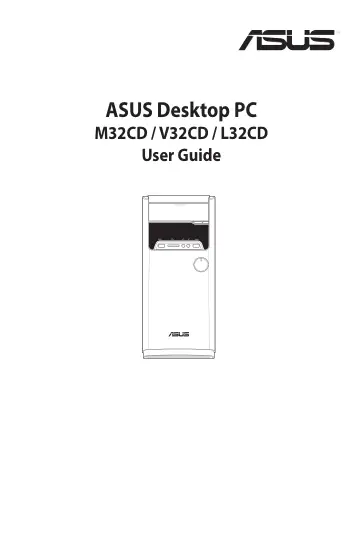
ASUS M32CD-K-CZ005T manual
Desktops & servers
1 document
What's in the ASUS M32CD-K-CZ005T user manual
From ASUS M32CD-K-CZ005T user manual · 54 pages · English. Tap a section to open the PDF at its page.
- Noticesp. 4
ASUS Recycling/Takeback Services ASUS recycling and takeback programs come from our commitment to the highest standards for protecting our environment. We…
- Safety informationp. 7
Disconnect the AC power and peripherals before cleaning. Wipe the Desktop PC using a clean cellulose sponge or chamois cloth dampened with solution of…
- Conventions used in this guidep. 8
To ensure that you perform certain tasks properly, take note of the following symbols used throughout this guide
- Where to find more informationp. 8
Refer to the following sources for additional information and for product and software updates. ASUS websites The ASUS website provides updated information on…
- Chapter 1: Getting startedp. 11
Welcome! Thank you for purchasing the ASUS Desktop PC! The ASUS Desktop PC provides cutting-edge performance, uncompromised reliability, and usercentric…
- Welcome!p. 11
Thank you for purchasing the ASUS Desktop PC! The ASUS Desktop PC provides cutting-edge performance, uncompromised reliability, and usercentric utilities. All…
- Getting to know your computerp. 11
Illustrations are for reference only. The ports, their locations and the chassis color vary with different models. ASUS M32CD / V32CD / L32CD 11 Chapter 1…
- Setting up your computerp. 16
This section guides you through connecting the main hardware devices, such as the external monitor, keyboard, mouse, and power adapter to your computer.…
- Turning your computer ONp. 19
This section describes how to turn on your computer after setting up your computer. Turning your computer ON To turn your computer ON: 1. Turn your monitor ON.…
- Chapter 2: Connecting devices to your computerp. 21
Removing a USB storage device To remove a USB storage device: 1. Click , then click from the Windows taskbar on your computer, then click Eject. 2. When the…
- Connecting a USB storage devicep. 21
This desktop PC provides USB 3.1 Gen 1 ports on the front panel, and USB 3.1 Gen 1 / 2.0 ports on the rear panel. The USB ports allow you to connect USB…
- Removing a USB storage devicep. 21
To remove a USB storage device: 1. Click , then click from the Windows taskbar on your computer, then click Eject. 2. When the Safe to Remove Hardware message…
- Connecting multiple external displaysp. 25
Your desktop PC may come with VGA, HDMI, or DVI ports and allows you to connect multiple external displays. When a graphics card is installed in your computer…
- Connecting microphone and speakersp. 22
This desktop PC comes with microphone ports and speaker ports on both the front and rear panels. The audio I/O ports located on the rear panel allow you to…
- Connecting an HDTVp. 26
Connect a High Definition TV (HDTV) to the HDMI port of your computer. • You need an HDMI cable to connect the HDTV and the computer. The HDMI cable is…
- Chapter 3: Using your computerp. 27
- Proper posture when using your Desktop PCp. 27
When using your Desktop PC, maintaining the proper posture is necessary to prevent strain to your wrists, hands, and other joints or muscles. This section…
- Using the memory card readerp. 28
Digital cameras and other digital imaging devices use memory cards to store digital picture or media files. The built-in memory card reader on the front panel…
- Using the optical drivep. 29
- Chapter 4: Connecting to the Internetp. 31
Wired connection Use an RJ-45 cable to connect your computer to a DSL/cable modem or a local area network (LAN). Connecting via a DSL/cable modem To connect…
- Wired connectionp. 31
Use an RJ-45 cable to connect your computer to a DSL/cable modem or a local area network (LAN). Connecting via a DSL/cable modem To connect via a DSL/cable…
- Wireless connection (on selected models only)p. 35
Connect your computer to the Internet through a wireless connection. To establish a wireless connection, you need to connect to a wireless access point (AP). •…
- Chapter 5: Troubleshootingp. 37
- Troubleshootingp. 37
This chapter presents some problems you might encounter and the possible solutions. ? My computer cannot be powered on and the power LED on the front panel…
- Appendixp. 45
Windows® 10 User Manual
- Windows® 10 User Manualp. 45
E10435 First Edition May 2015 Copyright © ASUSTeK Computer Inc. All Rights Reserved Appendix Windows® 10 User Manual
- ASUS contact informationp. 54
ASUSTeK COMPUTER INC. Address 15 Li-Te Road, Peitou, Taipei, Taiwan 11259 Telephone +886-2-2894-3447 Fax +886-2-2890-7798 E-mail info@asus.com.tw Web site…